
Roles
Xperia has three roles:Admin
Full access to dashboards and all settings, including users, billing, retention, and security.
Primary
Full access to dashboards and QA work, with limited settings.
Secondary
Upload, view, and download only.
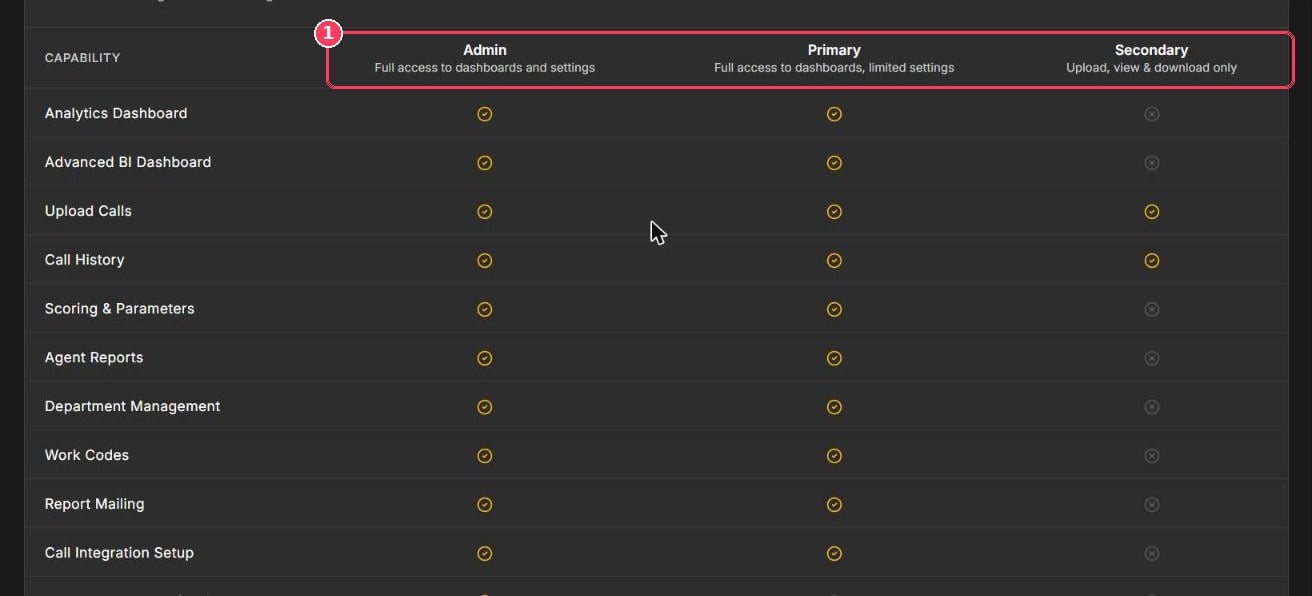
Role guide at the bottom of User Management
Permission matrix
Invite a user
1
Click Add User
At the top right of User Management. The Add New User dialog opens.
2
Enter the email address
The invitation is sent to this address.
3
Enter the full name
Type a name or pick an existing agent. This is how the user is shown, and they can’t change it themselves.
4
Select a role
Admin, Primary, or Secondary.
5
Choose a department (optional)
Assign the user to a department.
6
Click Add User
The user receives an email invitation.
Manage users
- The cards at the top show Total Users and the number of Admins, Primary, and Secondary users.
- Search the User Directory by name or email.
- Each user shows their Role and Status (for example active).
- Click the bin to remove a user’s access, or the refresh button to reload the list.