
Log in
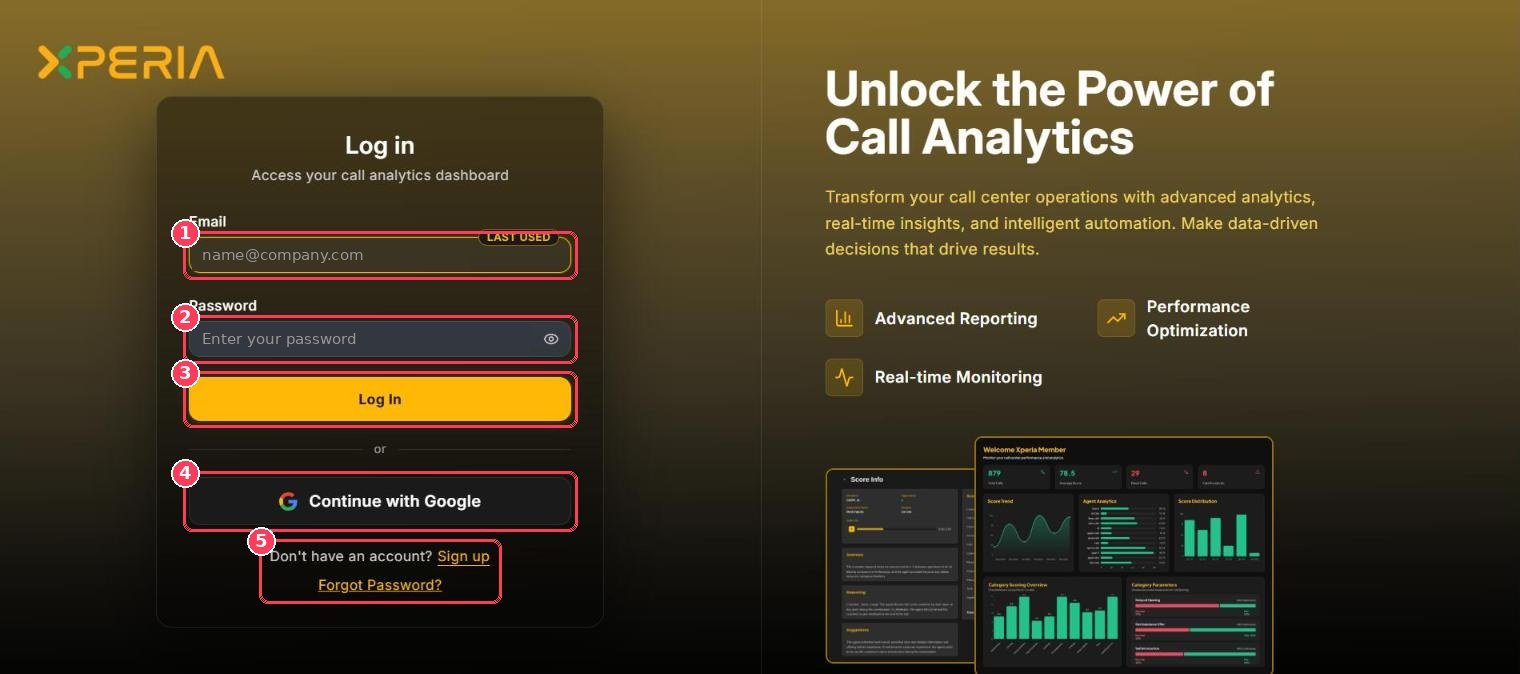
Log in page
1
Open the login page
Go to xperia.najoomi.ai and click Login.
2
Enter your credentials
Type your email and password — or click Continue with Google.
3
Click Log In
You land on the Xperia portal. New users start on Getting Started.
If your workspace has Two-Factor Authentication turned on (see Workspace Settings → Security), you’ll be asked to verify your identity after entering your password.
Reset your password
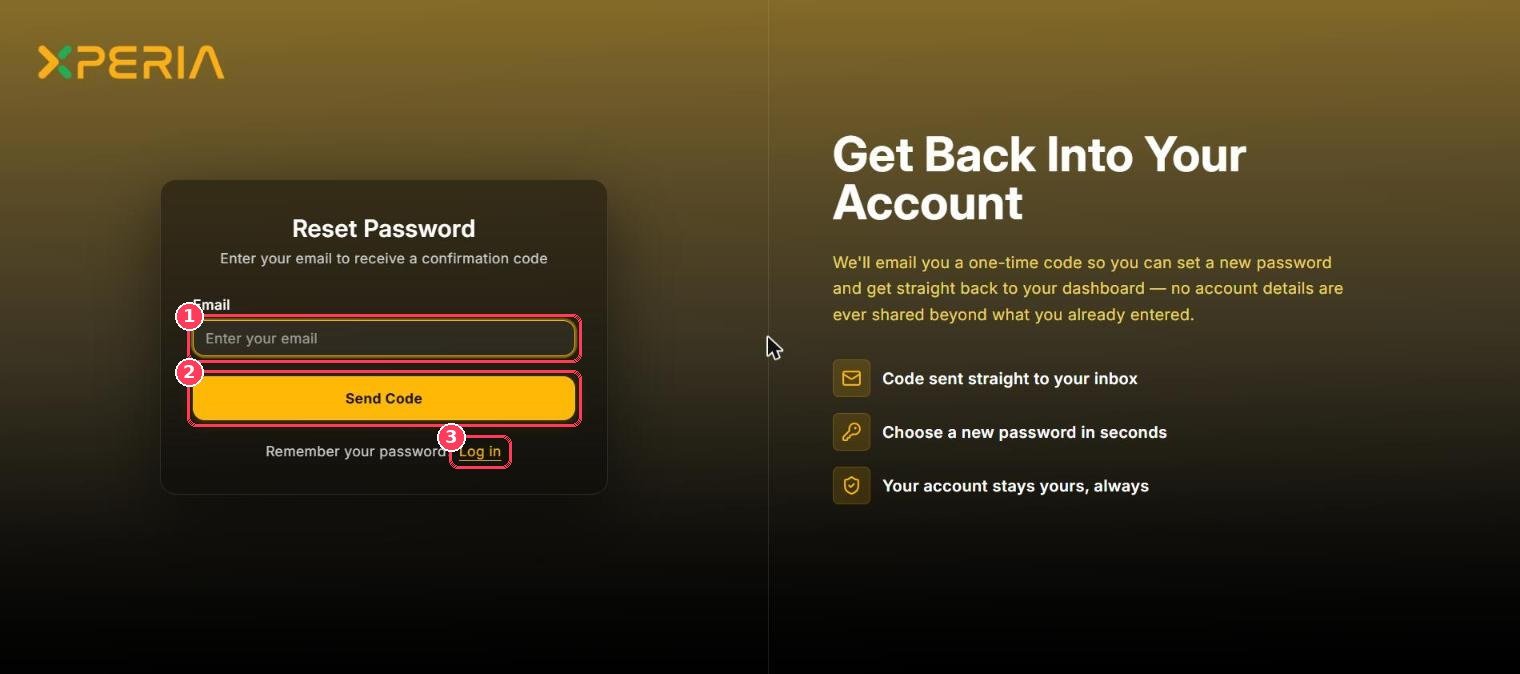
Reset Password page
1
Click Forgot Password?
On the login page, below the sign-in buttons.
2
Enter your email and click Send Code
Xperia emails you a one-time code.
3
Enter the code and choose a new password
Check your inbox (and spam folder), enter the code, and set your new password.
4
Log in
Sign in with your new password.
Create a workspace account
New organizations can create their own Xperia workspace.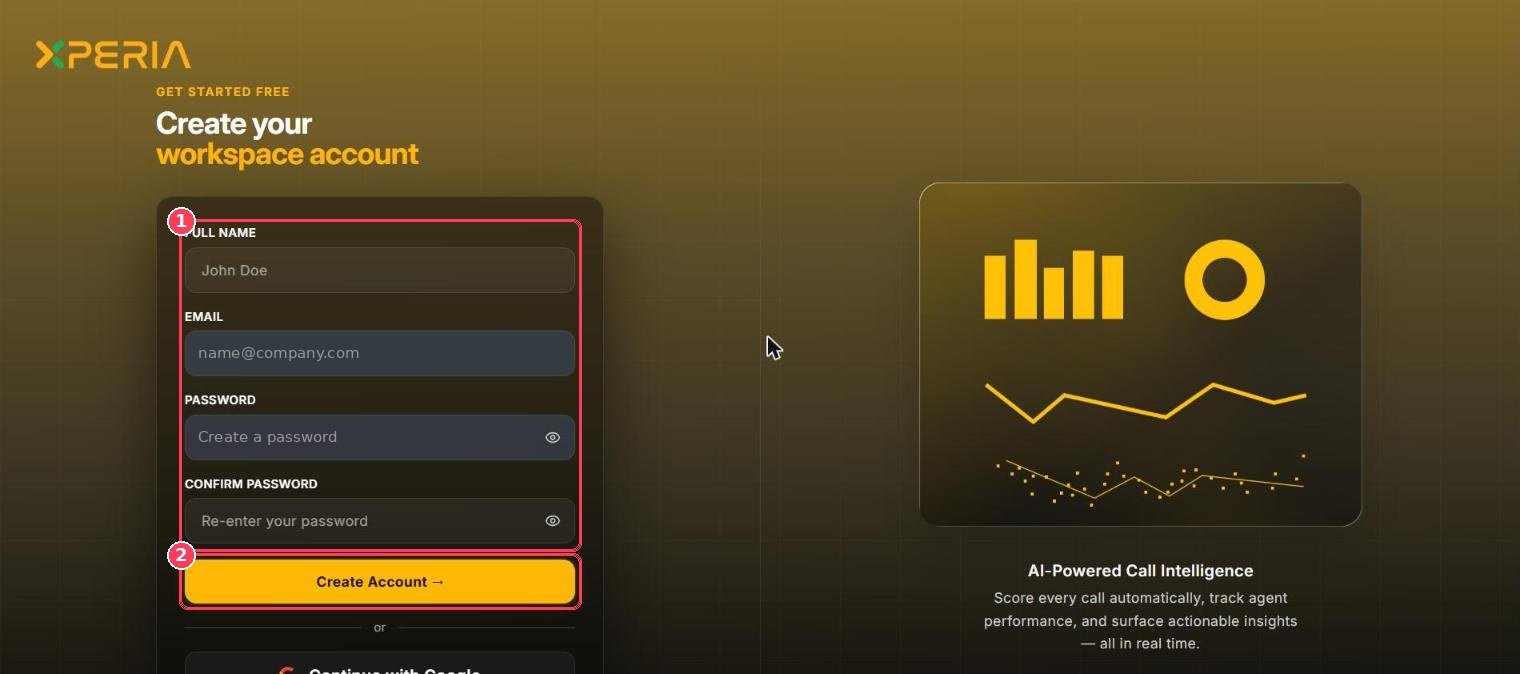
Create your workspace account
By signing up you agree to Xperia’s Terms of Service and Privacy Policy. Already have an account? Click Sign in to your dashboard.