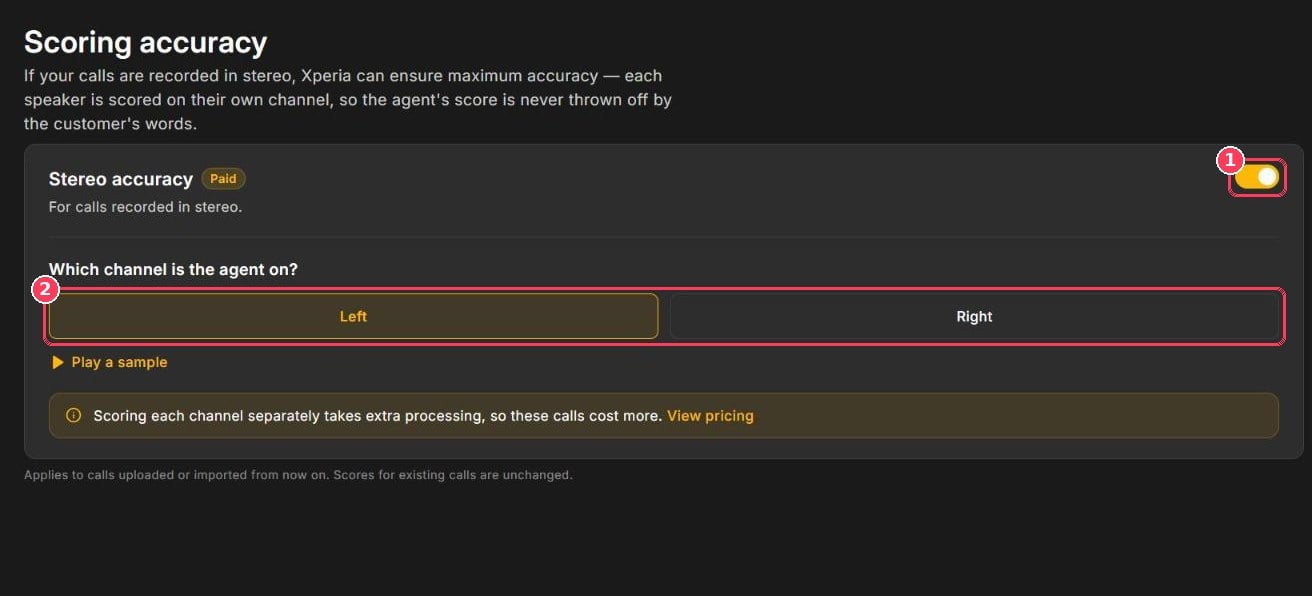
Scoring accuracy page
Turn on stereo accuracy
1
Confirm your recordings are stereo
Ask your telephony provider, or open a recording in any audio editor — stereo files show two separate waveforms.
2
Turn on Stereo accuracy
Switch the toggle on (callout 1).
3
Select the agent's channel
Choose Left or Right (callout 2).
Good to know
Paid feature
Scoring each channel separately takes extra processing, so stereo calls cost more. Click View pricing on the page for current rates.
Applies going forward
The setting applies to calls uploaded or imported from now on. Existing scores are unchanged.
Mono recordings (a single channel) don’t need this setting — leave it off.