
Choose an integration type
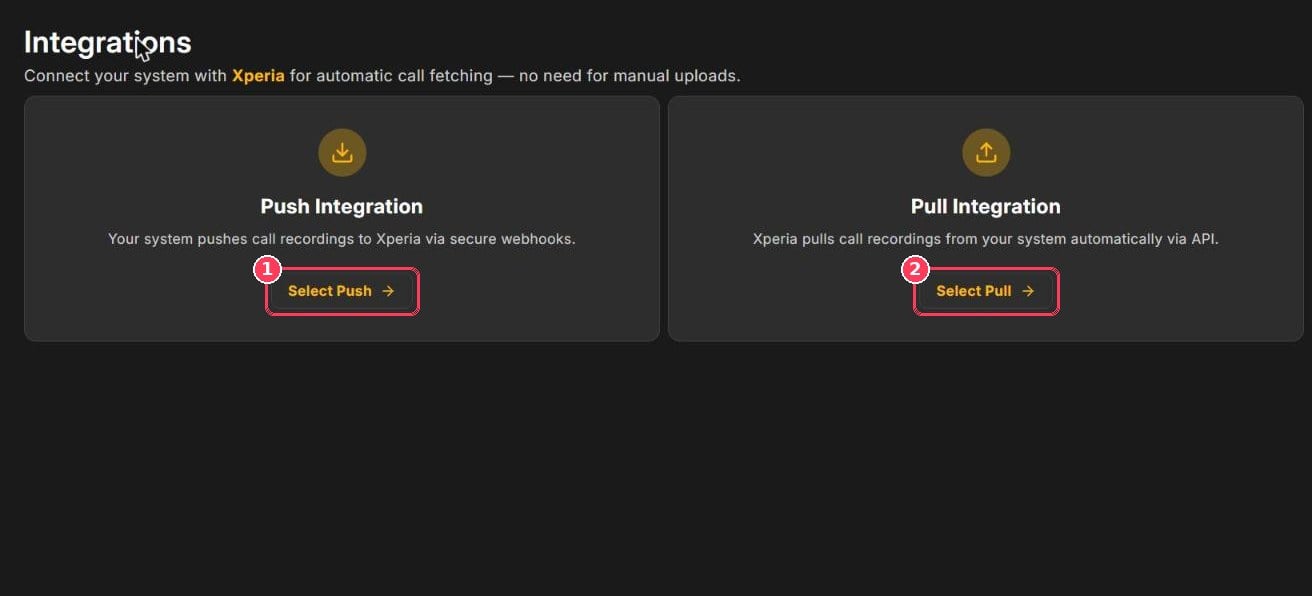
Integration options
After you select a mode and confirm, Xperia switches your account to it and generates dedicated credentials for your technical team.
Once an integration is configured, the Integrator shows three tabs — Limits, Metadata, and Filter. Use Go back to integration options at the top to return to the mode choice.
Limits
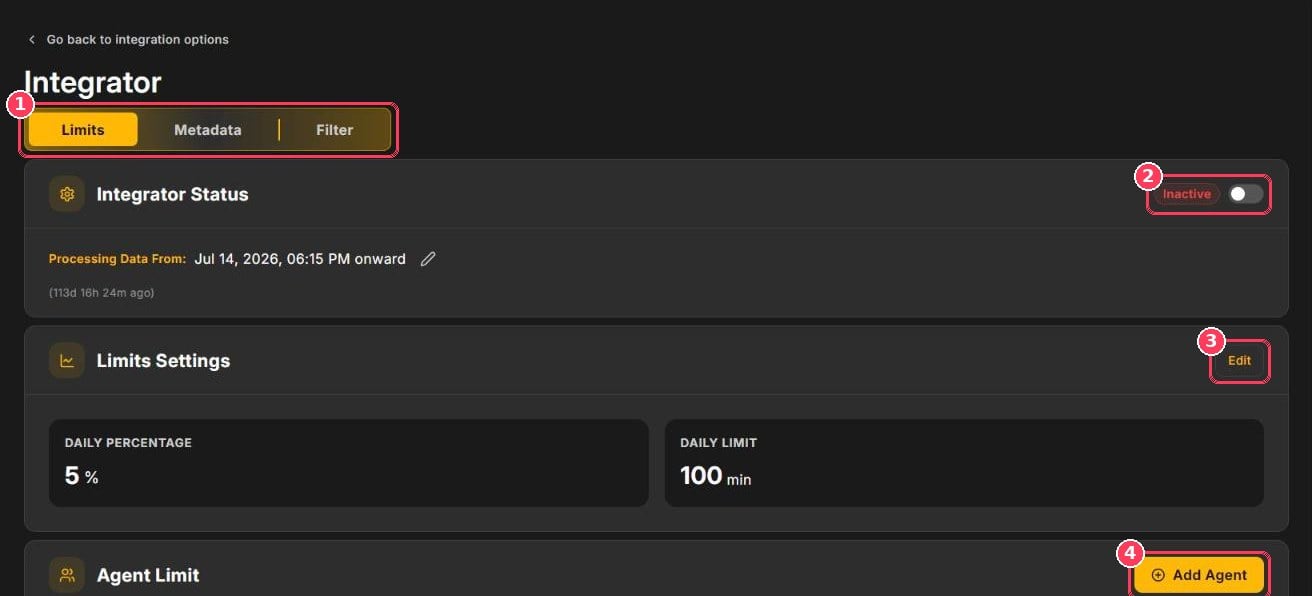
Integrator — Limits tab
Metadata
The Metadata tab lists the fields your system sends with each call — for example InteractionDate, Agents, Queue, Direction, Duration, Disposition, and CallHoldTime. Switch between Formatted and JSON views. Check this tab to confirm exact field names and values before creating filters.Filter
Filters decide which calls are imported. A call must match every enabled filter to be scored.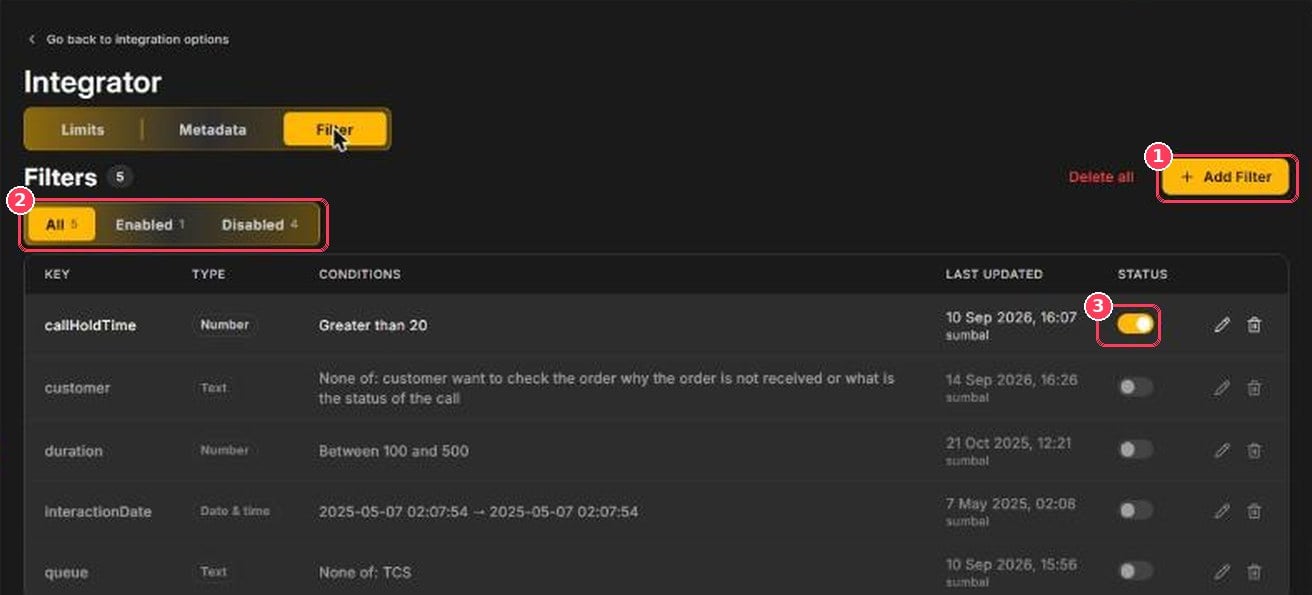
Integrator — Filter tab
Each filter has a Key (metadata field), a Type (Number, Text, or Date & time), and a Condition:
Add a filter
1
Click Add Filter
The Add New Filter form opens.
2
Select the key
Choose a metadata field from Select Key.
3
Set the condition
Choose the operator and enter the value(s).
4
Save
Leave Filter Status set to Enabled and save.