
Categories Weightage
Distribute 100 points across categories and parameters.
Custom Parameter
Create your own checks in plain language.
Specialized Parameter
Fatal incidents and trackers.
Categories Weightage
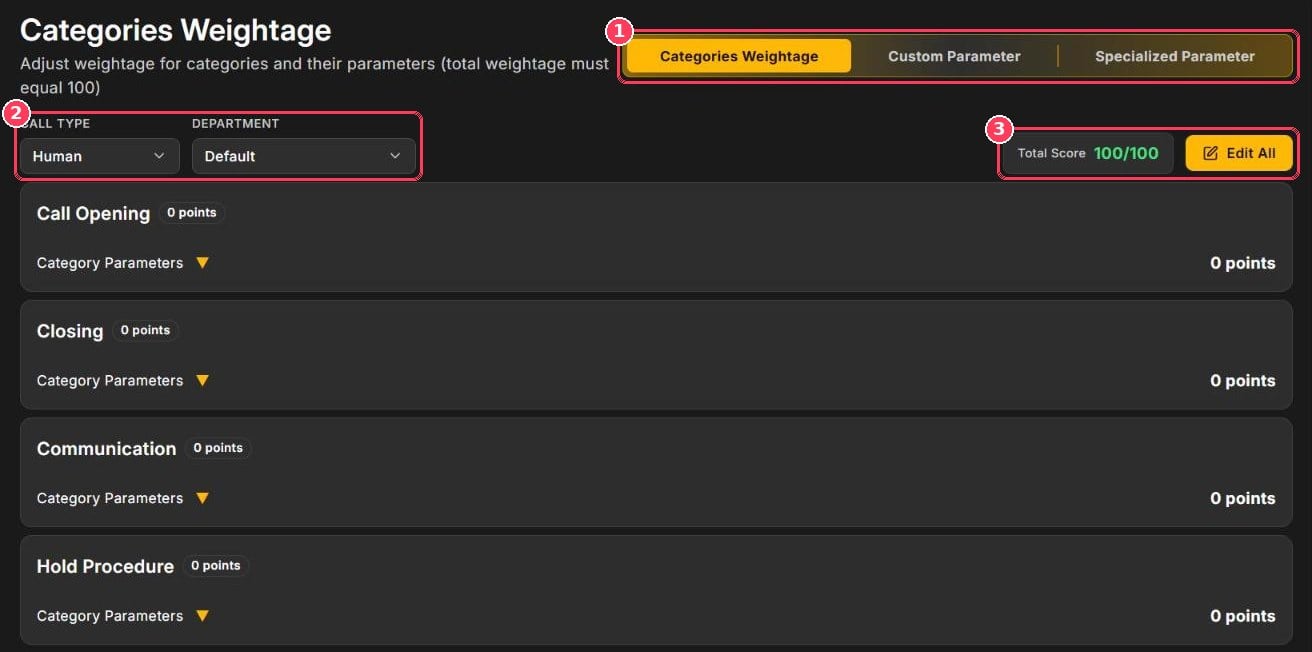
Categories Weightage tab
Standard categories
Xperia includes ten categories: Call Opening, Closing, Communication, Hold Procedure, Listening, Personalisation, Probing, Responsibility, Tone, and Upselling. Your custom parameters are grouped in their own Custom Parameter category. Each category contains parameters. For example, Call Opening contains Self Introduction, Delayed Opening, and Assistance Offered. Click Category Parameters ▼ to expand a category, and hover the ⓘ icon to read a parameter’s description.Change the weightage
1
Choose the scorecard
Select the Call Type and Department (callout 2).
2
Click Edit All
Point fields become editable.
3
Assign points
Enter points for each category and its parameters. Set a category to 0 to exclude it from scoring.
4
Balance to 100
Adjust until Total Score reads 100/100.
5
Save
Save your changes. The new weightage applies to calls scored from now on.
Changing weightage does not re-score calls that were already processed.
Custom parameters
Custom parameters let you score behaviors specific to your business — a mandatory greeting, identity verification, a disclosure, upselling — without writing rules by hand. You describe the behavior, and Xperia’s AI writes the full evaluation rule.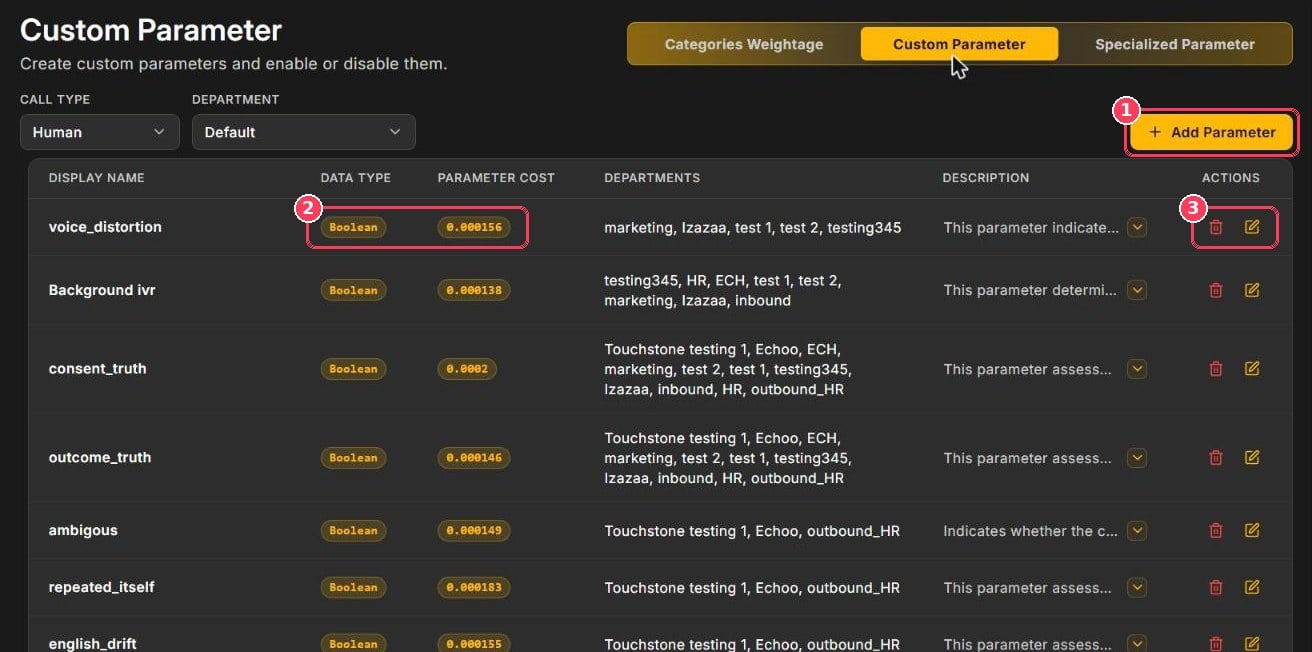
Custom Parameter tab
The Departments column shows where each parameter is scored (Unassigned means the Default set), and Description shows the full rule — click the arrow to expand it.
Create a custom parameter
The Add Custom Parameter wizard has four steps: Create → Review → Weightage → Upload.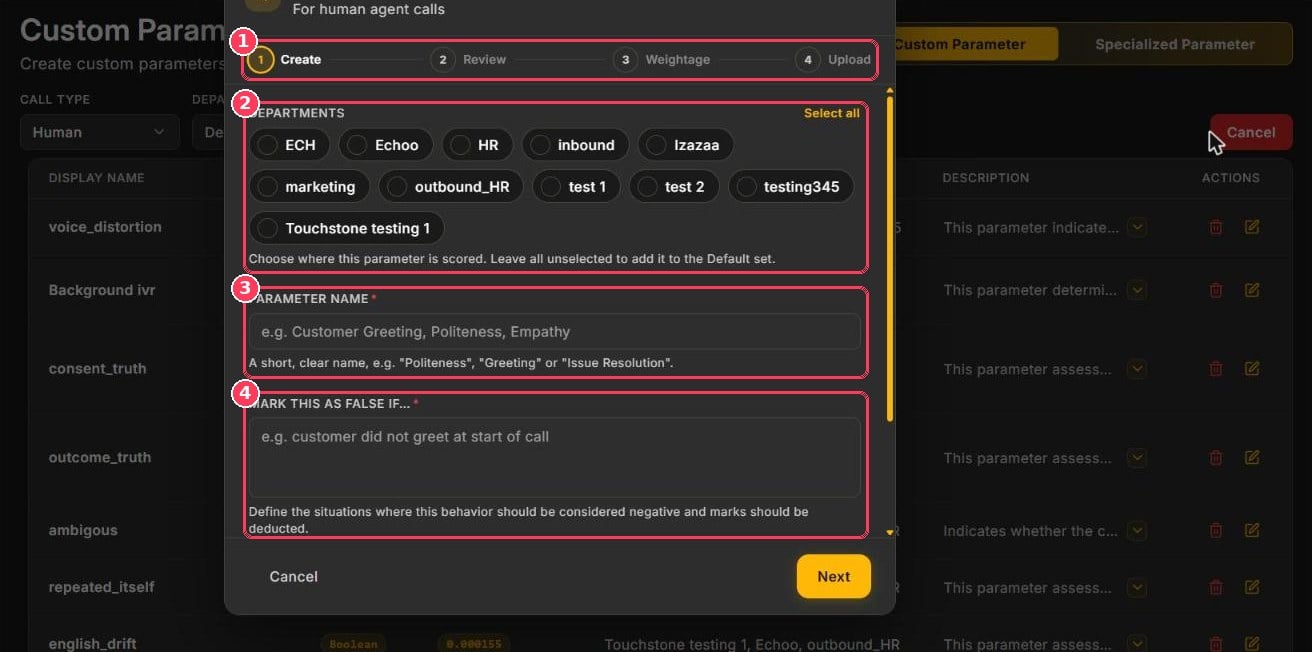
Add Custom Parameter — Create step
Below these fields is Track this in every call (on by default). Keep it on only for behaviors that belong in every call, such as greeting the customer or reading a compliance statement. With it on, a call that didn’t need the behavior can still lose points — for example, with Empathy on, a customer who only asks for an order status is still checked for empathy.
Click Next to continue.
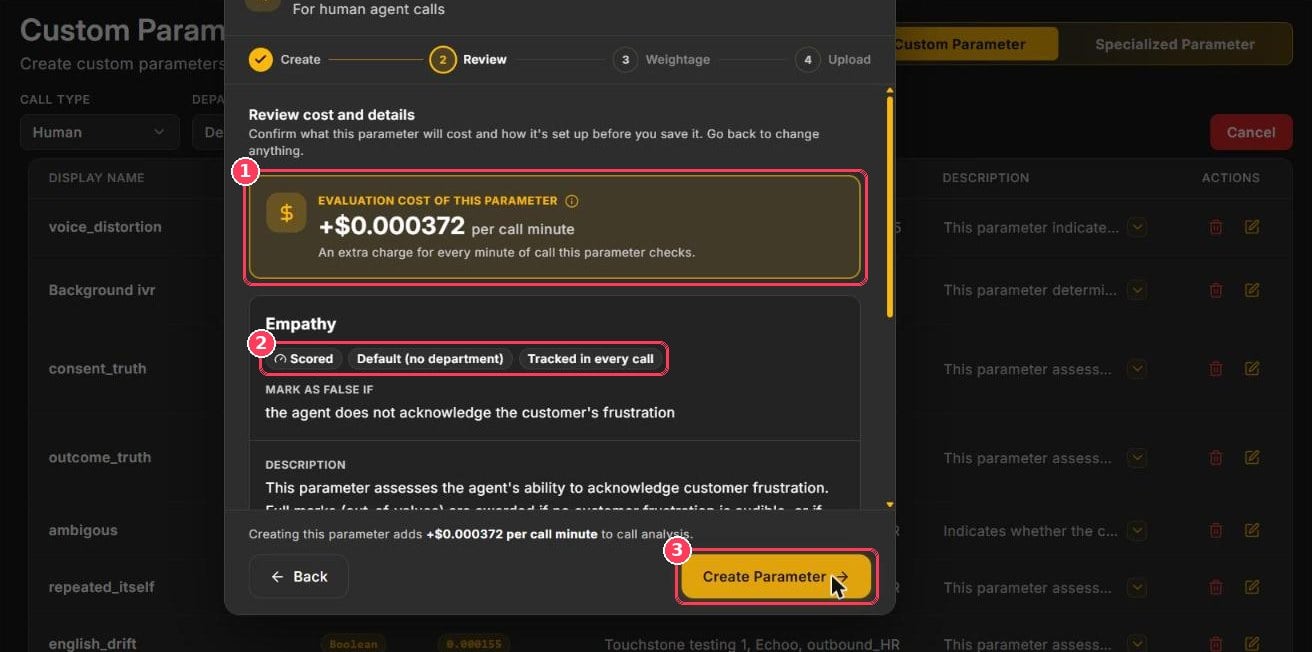
Add Custom Parameter — Review step
Then complete the Weightage step — give the new parameter its points while keeping the total at 100 — and finish the wizard.
Tips for writing good parameters
One behavior per parameter
One behavior per parameter
“Agent verified the customer’s identity” is easy to score. “Agent was polite, verified identity, and offered help” mixes three checks — split it into three parameters.
Describe the failure
Describe the failure
The field is Mark this as false if…, so write the negative case: the agent ends the call without asking if anything else is needed.
Quote exact wording
Quote exact wording
If agents must say specific words (a greeting, company name, or disclosure), include them in the description.
Control the cost
Control the cost
Every parameter adds a small per-minute cost. Assign parameters only to the departments that need them, and delete ones you no longer use.
Edit or delete a parameter
- Click the pencil to edit the name, rule, or departments.
- Click the bin to delete it. Deleted parameters are no longer evaluated; past scores are kept.