
The Call Scoring page
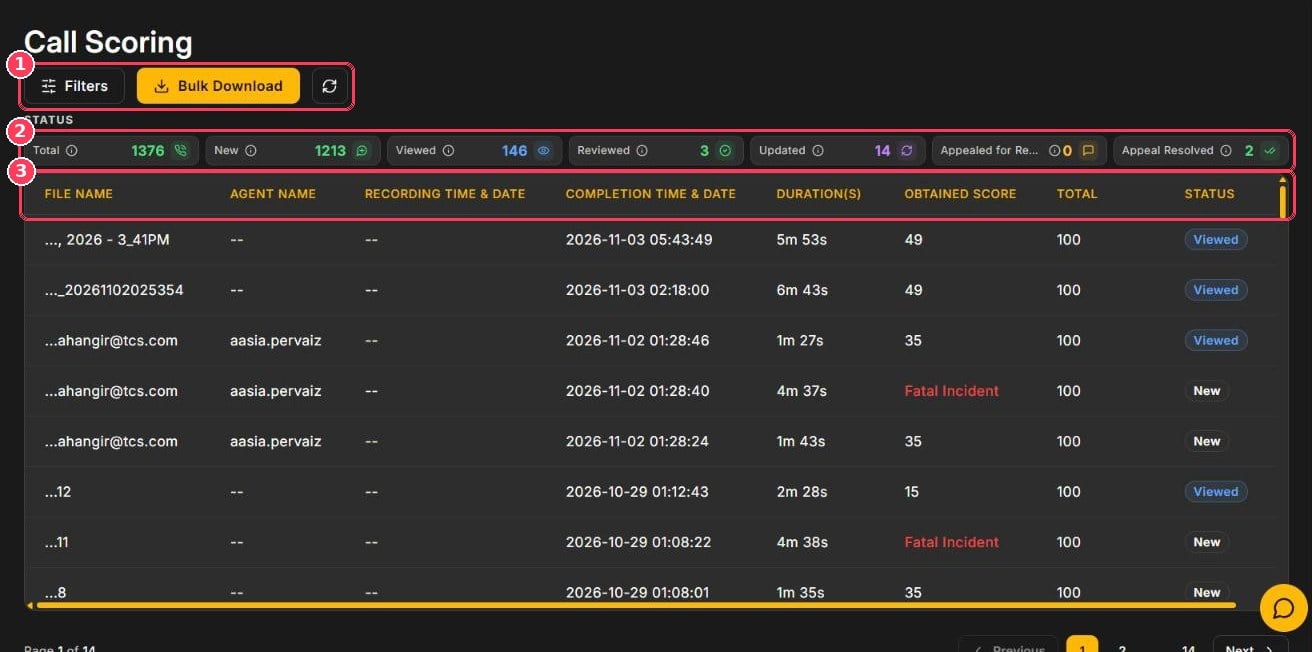
Call Scoring page
Status counters
Call list columns
Filter and search calls
Click Filters to open the Filter By panel. Choose your options, then click Apply Filters. Clear All resets the panel.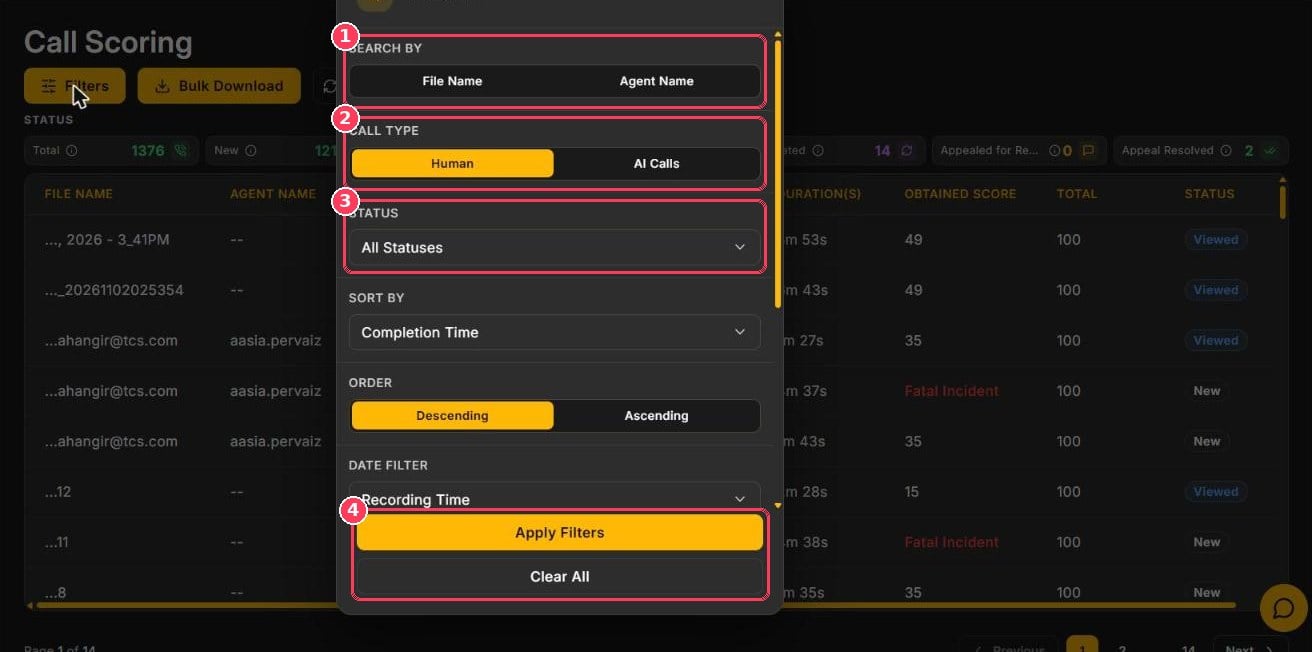
Filter By panel
Scroll down in the panel for more options:
Read a call report
Click any call to open its File Report.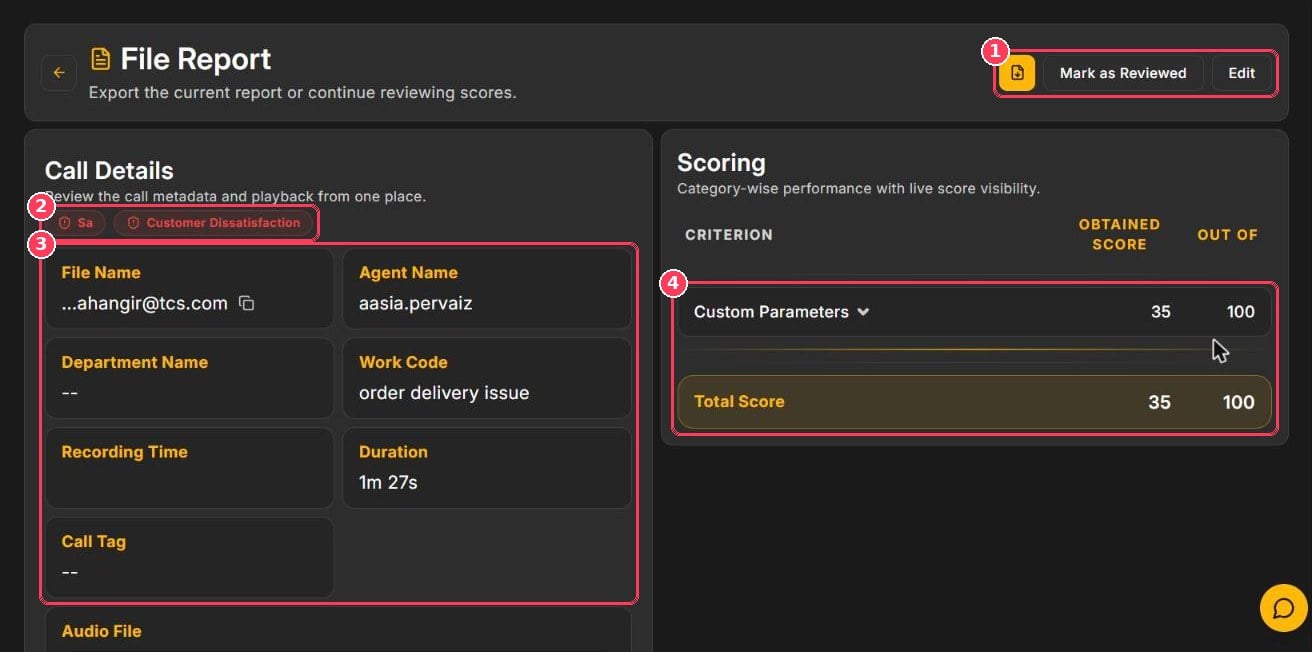
File Report — header, call details, and scoring
Scroll down for the audio and the AI insights:
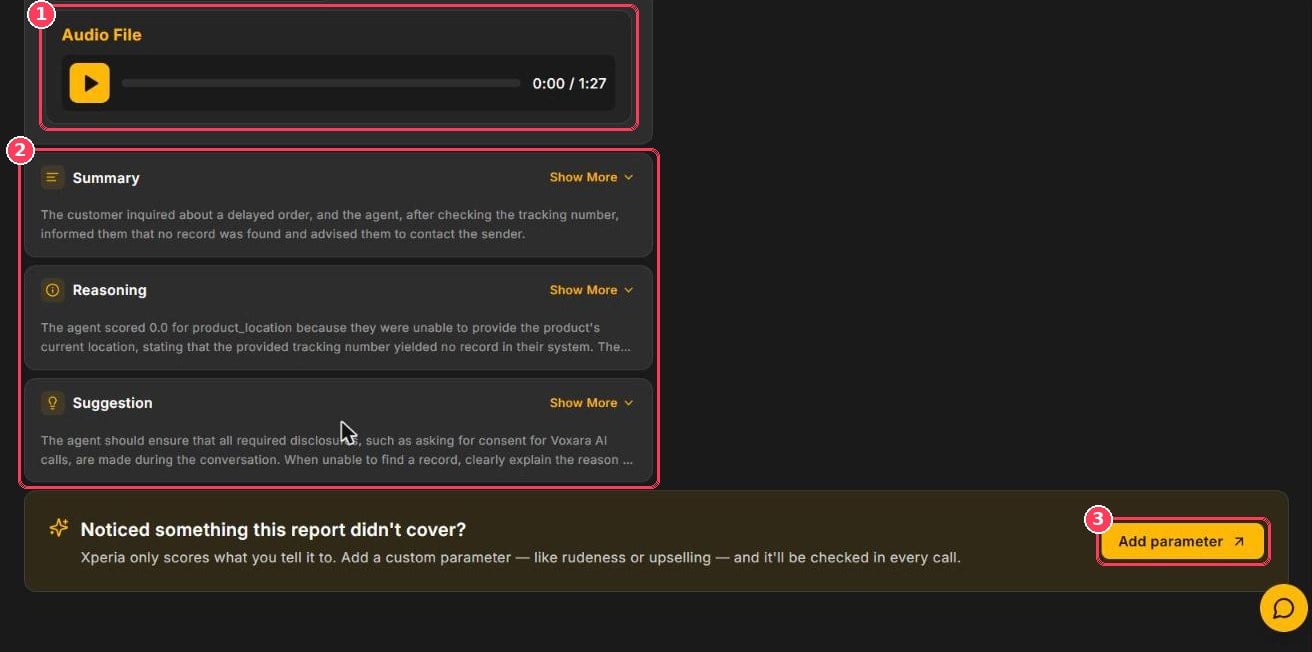
File Report — audio and AI insights
Edit a score
Reviewers can correct the AI when needed.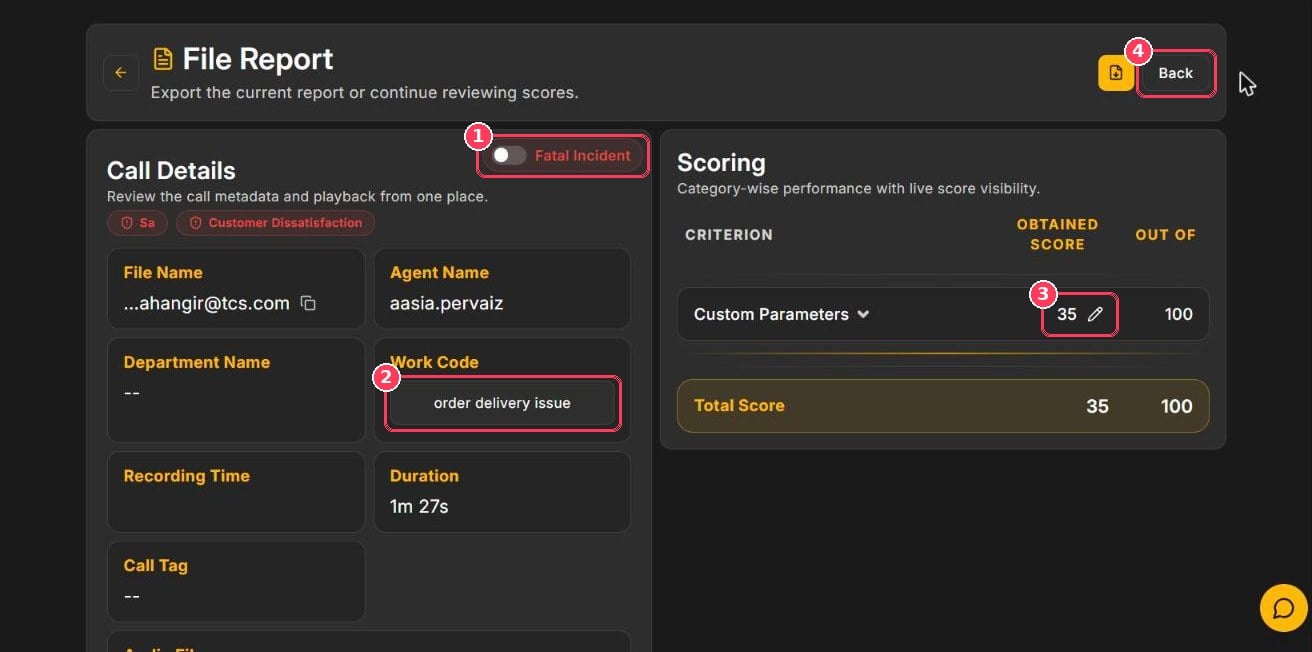
File Report in edit mode
1
Open the report and click Edit
The report switches to edit mode.
2
Make your corrections
Change scores, the work code, or the fatal incident status.
3
Leave edit mode
Click Back. The call’s status changes to Updated.
4
Mark as reviewed
Click Mark as Reviewed so your team knows the call has been checked.
Handle score appeals
When an agent disagrees with a score, they can appeal it. Appealed calls are counted under Appealed for Review.1
Find appealed calls
Click Filters, turn on Appealed for Review, and click Apply Filters.
2
Open the call
Review the agent’s appeal from the report.
3
Respond
Respond to the appeal and correct the score if needed. The call moves to Appeal Resolved.
Download or email reports in bulk
Click Bulk Download to export many reports at once.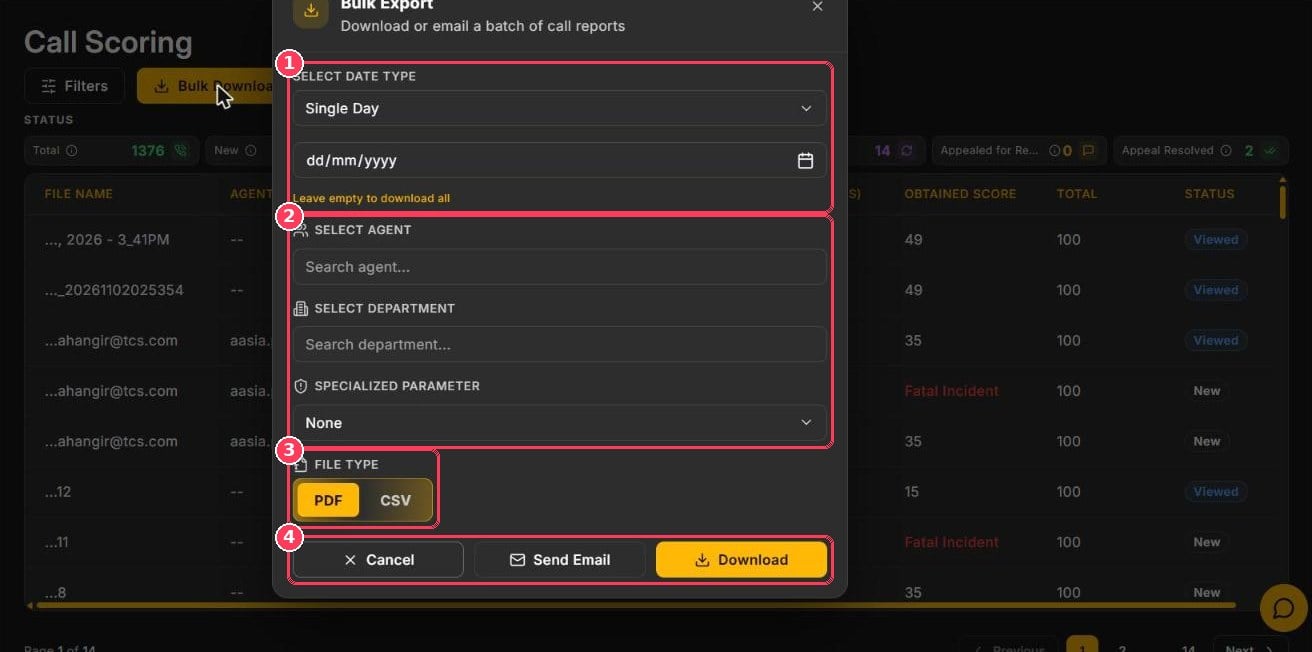
Bulk Export dialog